

Pay-As-You-Go plan #
Initial Store Setup on Foyzo (After Registration & Approval)
This guide covers the initial store setup that takes place after seller registration and confirmation.
It applies to the Pay-As-You-Go plan.
The setup process is divided into four steps, each covering one essential step.
Step 1 — Basic Store Information #
In this step, you complete the core information for your store.
You will review and update if you want:
- Store Logo
- Banner (Banner size must be (1650×350) pixels.)
- Shop Name
- Store Email
- Store Phone
- Store description
- Contact details
This information is publicly visible and represents your store on the Foyzo marketplace.
Step 2 — Connect Your Stripe Account #
In this step, you connect your Stripe Connect Account to receive payments.
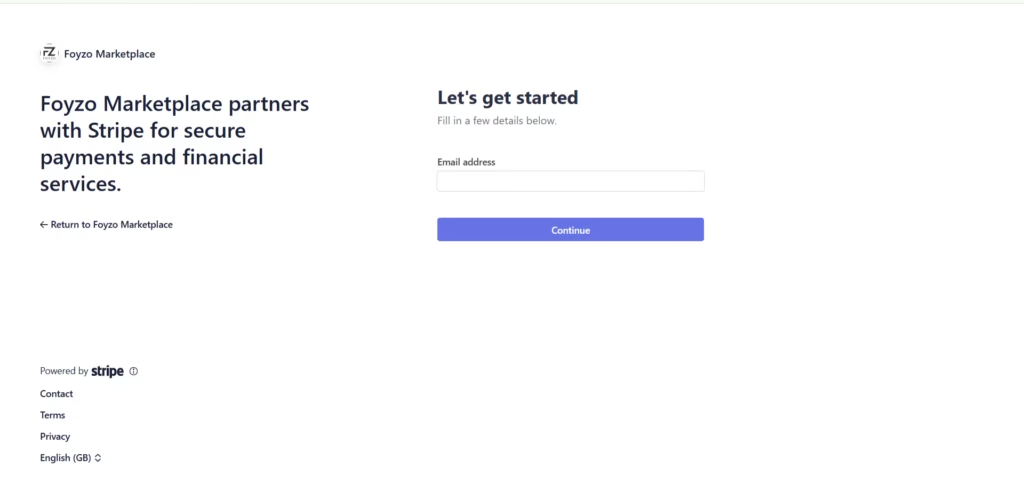
You will:
- Connect an existing Stripe account or
- Create a new Stripe account if you don’t have one
- Authorize Stripe to process payouts from Foyzo
This step is mandatory to receive earnings from sales.
Step 3 — Store Policies #
In this step, you configure your store policies.
You can set:
- Shipping Policy
- Refund Policy
- Cancellation/Return/Exchange Policy
If you do not add your own policies, Foyzo’s default platform policies will apply.
Step 4 — Support Setup #
In this step, you configure how customers can contact you for support.
You will set up:
- Support phone number
- Support email address
- Support Address
This information is used for customer communication and order-related support.
Flat Fee – Zero Commission #
For this upgraded plan, you must complete all steps from the Pay-As-You-Go (Free) plan first.
In addition, this plan provides extra store setup options, described below.
Step 5 — SEO Setup #
After completing customer support, you continue with SEO setup for your store.
In this step, you configure the following fields:
- SEO Title
This title is shown as the title of your store page in search engines. - Meta Description
This description may appear as the text below the title in search results.
It should contain relevant keywords and be under 156 characters. - Meta Keywords
Enter comma-separated keywords related to your store for better ranking.
This step controls how your store appears in search engines.
Step 6 — Social Setup #
In this step, you configure your store social media links.
You can add links for:
- YouTube
- Google Plus
- Snapchat
These links are used to display your store’s social presence.
Important Next Step (Required) #
After completing the steps above, the first thing you should do next is to visit your dashboard and go to the Store Settings, and add additional store information.
Go to:
https://foyzo.com/store-manager/settings/
In this section, you can review and complete any remaining store details that were not fully covered during the initial setup steps.
This ensures your store information is complete before you start adding products or managing orders.



 The Marketplace Economy in 2026: Why Cost Structure Is Becoming the Real Competitive Battleground
 From Fitness Supplement to a Pillar of Modern Nutrition: The New Role of Protein